How to Install Office 365 Across Enterprise Tenants
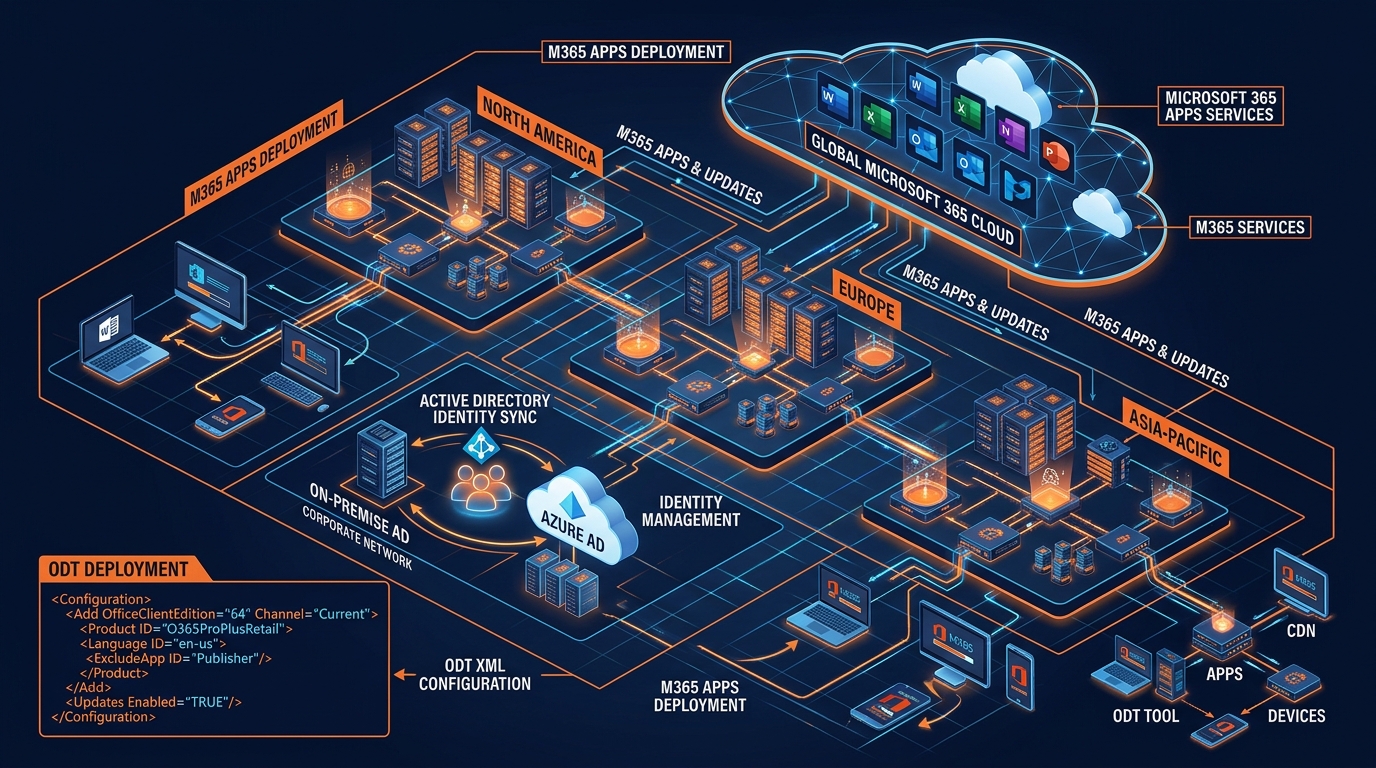
Figure 1: Enterprise Cloud Migration & Microsoft 365 Installation Architecture.
1. Executive Summary: The Modern Enterprise Cloud Imperative
In the current digital landscape, modernizing enterprise productivity suites is no longer a simple routine software update—it is an infrastructure-wide transformation. When an organization plans to install office 365 across thousands of endpoints, the process touches every layer of the enterprise technology stack: identity management, network routing, endpoint compliance, email security, and legacy data archives.
Ad-hoc or uncoordinated deployments frequently result in extended operational downtime, corrupted legacy mailboxes, data leakage, and friction across business units. Modern enterprises cannot afford uncoordinated domain cutovers or security gaps during cloud migration.
Transitioning from legacy on-premises Microsoft Exchange environments or standalone desktop installations to Microsoft 365 E3 or E5 tenant architectures requires precise technical planning. Engaging a specialized m365 deployment partner changes cloud migration from a high-risk operational headache into a structured, zero-downtime initiative. This comprehensive master guide provides CTOs, IT Directors, and Systems Architects with the technical blueprints, migration topologies, deployment scripts, and security baselines required to execute an enterprise-grade Microsoft 365 rollout.
2. Pre-Migration Discovery & Architecture Planning
Executing an enterprise cloud transition without deep pre-migration discovery is the primary cause of migration delays and data loss. Before deploying software packages or moving mailboxes, cloud engineers must evaluate active directory health, network egress capacity, and legacy data footprints.
Infrastructure Audit & Identity Readiness
The foundation of any Microsoft 365 deployment is user identity. Cloud synchronization requires a clean, non-conflicting Active Directory Domain Services (AD DS) environment:
- UserPrincipalName (UPN) Matching: All local user account UPNs must match the organization's verified public domain (e.g.,
user@company.com) rather than non-routable local domain suffixes like.localor.internal. - Attribute Cleanup: Run automated remediation scripts using tools like
IdFixto detect duplicateproxyAddresses, invalid characters inmailNickname, and orphaned Active Directory objects. - Immutable ID Mapping: Ensure clear correlation between the on-premises
objectGUIDand the cloud-nativeImmutableIdto prevent account duplication during synchronization.
Network Infrastructure Baseline & Bandwidth Provisioning
Deploying cloud productivity suites fundamentally alters network traffic flows. Moving from local Exchange traffic to continuous cloud connectivity demands optimized internet egress:
- Local Internet Breakout: Routing cloud traffic back through a central corporate WAN to an egress firewall introduces unnecessary latency. Implement localized internet breakouts for regional branch offices.
- Bypass SSL Inspection: Microsoft 365 endpoints utilize high-volume, encrypted channels. Exclude core Microsoft URLs and IP ranges (
*.office.com,*.office365.com,*.msftauth.net) from deep packet inspection (DPI) and SSL throttling to prevent connection drops. - Quality of Service (QoS): Prioritize Microsoft Teams real-time audio and video packets (
UDP ports 3478 through 3481) over routine file synchronization traffic.
Data Discovery & Legacy Mailbox Remediation
Legacy data stores are among the most complex aspects of cloud migration. Over years of operation, users accumulate disconnected PST files on local hardware, unmapped network shares, and legacy email archives.
Technical Note: Ingesting corrupt or unindexed PST files during active mailbox migration can slow migration throughput from 10 GB/hour down to single-digit megabytes, extending cutover windows dangerously.
Prior to cutover, scan all network drives using automated discovery agents. Scrape, repair, and stage PST files for bulk cloud ingestion. For step-by-step technical procedures on handling legacy data ingestion, refer to our detailed Import PST to Office 365 Guide.
3. Selecting the Right Architecture Topology
Choosing the correct migration topology depends on your current email platform, database size, total seat count, and tolerance for coexistence. A certified cloud migration provider evaluates these variables to build a custom migration plan.
Cutover Migration Topologies
Cutover migrations transfer all mailboxes, distribution lists, and contacts in a single migration event.
- Best Suited For: Organizations with fewer than 150–200 seats currently running Exchange 2013 or newer.
- Execution Profile: Quick execution over a weekend, but requires immediate cutover of all user Outlook profiles and mobile client re-configurations on Monday morning.
Staged Migration Strategies
Staged migrations transition batches of users to the cloud over time while maintaining directory synchronization between on-premises Active Directory and Microsoft Entra ID (formerly Azure AD).
- Best Suited For: Organizations running legacy Exchange Server 2007 or Exchange Server 2010 environments with over 200 mailboxes.
- Execution Profile: Enables phased migrations over weeks or months, though mailboxes must be moved before associated distribution groups can be managed natively in the cloud.
Exchange Hybrid Deployment Architecture (Full vs. Minimal)
For enterprise environments with hundreds or thousands of seats, a hybrid deployment is the industry standard for an exchange to microsoft 365 migration.
- Full Hybrid: Provides complete, transparent coexistence between on-premises Exchange servers and Exchange Online. Features include cross-premises free/busy calendar sharing, centralized mail routing (CMT), seamless Mailbox Replication Service (MRS) proxying, and offboarding capability.
- Minimal Hybrid: Uses the Hybrid Configuration Wizard (HCW) to set up trust and recipient synchronization without long-term free/busy features or centralized mail routing. Ideal for rapid, staged batch moves where long-term coexistence is unnecessary.
Tenant-to-Tenant (T2T) Migrations
Corporate mergers, acquisitions, and divestitures require an enterprise tenant migration. T2T architectures require migrating cloud-native objects between two distinct Microsoft 365 tenants. Key challenges include:
- Maintaining domain branding during the transition.
- Cross-tenant synchronization of GalSync (Global Address List).
- Migrating Teams chat histories, SharePoint Online document libraries, and OneDrive for Business personal sites concurrently.
4. Technical Execution: Step-by-Step Enterprise Rollout
To successfully install office 365 across an enterprise, implementation teams must follow a structured three-phase technical execution methodology.
Phase 1: Identity Synchronization & Federation Setup
- Install Microsoft Entra Connect: Provision a dedicated synchronization server running Entra Connect.
- Authentication Engine Selection: Choose between Password Hash Synchronization (PHS) with Seamless Single Sign-On (SSO) for maximum cloud resilience, or Pass-Through Authentication (PTA) if compliance demands local credential validation.
- Scope Synchronization: Configure Organizational Unit (OU) filtering to limit initial cloud user provisioning to designated deployment rings, preventing premature licensing of non-migrated users.
Phase 2: Automated Desktop & Mobile Application Deployment
When IT teams prepare to install office 365 desktop clients (Microsoft 365 Apps for Enterprise) across thousands of endpoints, manual installers should never be used. Systems engineers deploy using the Office Deployment Tool (ODT) and Microsoft Intune / System Center Configuration Manager (SCCM).
Sample Production Configuration File (configuration.xml)
The following production XML configuration installs Microsoft 365 Apps silently, removes legacy standalone Office installations, sets update channels, and disables telemetry logging:
<Configuration>
  <Add OfficeClientEdition="64" Channel="MonthlyEnterprise">
    <Product ID="O365ProPlusRetail">
      <Language ID="en-us" />
      <ExcludeApp ID="Groove" />
      <ExcludeApp ID="Lync" />
      <ExcludeApp ID="Access" />
    </Product>
  </Add>
  <Property Name="UpdatesEnabled" Value="TRUE" />
  <Property Name="PACKAGEDATE" Value="2026-01-15" />
  <Display Level="None" AcceptEULA="TRUE" />
  <Logging Level="Standard" Path="%temp%\O365InstallLogs" />
  <Remove MSIPROD="ALL" />
</Configuration>
Ring-Based Deployment Strategy
Deploy desktop clients systematically across four distinct deployment rings:
- Ring 0 (IT Systems Pilot - 5%): Validate installation scripts, XML parameters, and network distribution points.
- Ring 1 (Business Unit Champions - 15%): Test line-of-business (LOB) macro compatibility in Excel, Word, and Outlook add-ins.
- Ring 2 (Broad Production - 70%): Execute automated deployment to main business units via Intune configuration policies.
- Ring 3 (Executive & Mission-Critical - 10%): Handled with white-glove, high-touch support to guarantee zero executive workflow disruption.
Phase 3: Data Pipeline & Mailbox Cutover
- Stage Initial Replication: Deploy Mailbox Replication Service (MRS) batch jobs to perform background delta syncs of historical mailbox content while end users continue working on-premises.
- DNS TTL Reduction: Reduce Time-to-Live (TTL) values on public MX and Autodiscover DNS records to 300 seconds (5 minutes) at least 48 hours prior to final switchover.
- Final Differential Sync & Cutover: Execute final differential mailbox synchronization, apply licensing, switch MX records to Exchange Online Protection (EOP), and re-point Autodiscover CNAME records to
autodiscover.outlook.com. Leveraging robust email migration solutions during this phase guarantees zero dropped messages or unrouted traffic.
5. Zero-Downtime Execution & Security Hardening Baseline
Deploying the Microsoft 365 environment is only half the battle; the target tenant must be secured against cyber threats immediately upon activation.
Zero-Trust Identity Configuration
- Conditional Access Policies: Require Multi-Factor Authentication (MFA) using FIDO2 hardware keys or Microsoft Authenticator for all users. Implement risk-based conditional access that dynamically evaluates sign-in risk, device compliance state, and IP geolocation before granting session tokens.
- Deprecate Legacy Authentication: Block basic authentication protocols (IMAP, POP3, SMTP AUTH, PowerShell v1) enterprise-wide to eliminate password spray vulnerabilities.
- Privileged Identity Management (PIM): Enforce Just-In-Time (JIT) access for global administrators and tier-1 IT helpdesk staff, requiring approval workflows and time-bound role elevations.
Email Security & Domain Governance (SPF, DKIM, DMARC)
Securing outgoing and incoming email channels prevents domain spoofing and phishing attacks:
- Sender Policy Framework (SPF): Ensure exact DNS publishing of
v=spf1 include:spf.protection.outlook.com -allto declare authorized Microsoft IPs. - DomainKeys Identified Mail (DKIM): Enable dual 2048-bit DKIM key sets inside Exchange Online Protection to cryptographically sign outbound headers.
- DMARC Enforcement: Transition DMARC enforcement from
p=nonetop=quarantineand ultimatelyp=rejectto protect your brand reputation against address spoofing.
Information Protection & Governance Baseline
Deploy Microsoft Purview Information Protection to keep sensitive data protected inside enterprise boundaries:
- Sensitivity Labels: Apply automatic sensitivity labeling for documents containing Payment Card Industry (PCI) data, personally identifiable information (PII), or protected health information (PHI).
- Data Loss Prevention (DLP): Configure DLP policies across Teams, Exchange, and OneDrive that automatically prevent external sharing of sensitive source code, customer records, or financial disclosures.
6. Internal IT vs. Certified Implementation Partner
Many enterprise organizations assume their internal IT staff can execute a cloud migration as a side project. However, internal teams are often constrained by daily helpdesk workloads, lacking the specialized tooling and deep architectural experience required for zero-downtime execution.
| Evaluation Criterion | Internal IT Execution Model | Certified Cloud Implementation Partner |
|---|---|---|
| Deployment Velocity | Extended timelines (6–18 months) due to competing helpdesk priorities and learning curves. | Accelerated delivery (2–8 weeks) driven by automated scripts and dedicated migration engineers. |
| Risk & Business Continuity | Higher probability of unintended email downtime, broken Autodiscover routes, or PST data loss. | Guaranteed Zero-Downtime SLA backed by structured cutover procedures and proven rollback plans. |
| Identity & AD Integration | Basic password sync; prone to duplicate accounts, broken UPN matches, and hybrid errors. | Enterprise Entra ID integration featuring Password Hash Sync, SSO, and Conditional Access baselines. |
| Security & Compliance | Default tenant settings left unhardened; missing DLP policies, DMARC enforcement, or PIM setups. | Turnkey deployment of Microsoft Purview, Defender for Office 365, and zero-trust identity policies. |
| Post-Migration Support | Internal team overburdened by post-cutover helpdesk tickets and profile re-configurations. | Structured hypercare support, automated profile configuration, and comprehensive admin handoff training. |
To understand how professional architectural oversight helps avoid costly deployment pitfalls, read our detailed Microsoft Office 365 Consultant Guide.
7. Enterprise Partner Evaluation Framework
When selecting an enterprise m365 deployment partner, IT leadership should rigorously audit potential vendors against eight core capability indicators:
- Certified Cloud Solutions Partner Credentials: Validate that the partner holds verified Microsoft Solutions Partner designations in Enterprise Applications and Security.
- Proven Exchange Hybrid & T2T Expertise: Ensure the vendor has verifiable success executing complex Exchange Hybrid deployments and enterprise tenant migrations for organizations of similar size and complexity.
- Automated PST Ingestion Capabilities: Confirm the partner utilizes proprietary or enterprise-grade automated pipelines to audit, repair, and ingest PST data into the cloud without manual user-by-user intervention.
- Formal Zero-Downtime SLAs: Request written Service Level Agreements guaranteeing zero unplanned mail flow downtime during MX record cutovers and database migrations.
- Advanced Identity & Security Design: Evaluate the partner’s experience in configuring Entra ID Connect, Pass-Through Authentication, Conditional Access baselines, and Purview Data Loss Prevention (DLP).
- Structured Change Management & User Enablement: Verify that the scope includes end-user training resources, communication templates, and interactive adoption portal setups to drive post-migration tool utilization.
- Transparent Pricing Models: Look for clear fixed-fee or predictable per-seat migration packages that eliminate unexpected costs for bandwidth, data volume overages, or post-migration hypercare support.
- Enterprise Compliance Alignment: Ensure the partner adheres to strict regulatory compliance frameworks (SOC 2 Type II, GDPR, HIPAA, ISO 27001) throughout the handling and processing of enterprise data.
8. Post-Migration Telemetry, Governance & Continuous Optimization
A successful migration does not end when MX records are switched. The operational phase requires ongoing telemetry monitoring, identity governance, and license optimization.
Endpoint Analytics & App Health Telemetry
Monitor the performance of newly installed Microsoft 365 Apps using Microsoft Endpoint Analytics inside Intune:
- Startup Performance: Track device boot time and app load times to identify hardware bottlenecks or incompatible third-party add-ins.
- Proactive Remediation: Deploy automated PowerShell scripts via Intune to fix common registry misconfigurations, update channels, or licensing activation errors before users file helpdesk tickets.
License Lifecycle Optimization
Cloud subscriptions represent a recurring operational expenditure. Establish continuous license lifecycle governance:
Optimization Rule: Implement automated scripts to identify inactive user accounts that have not logged into Exchange Online or Microsoft Teams in over 30 days. Automatically convert these mailboxes to shared mailboxes (which do not require paid licenses up to 50 GB) and release the active E3/E5 licenses back into your license pool.
Operational Knowledge Management & Self-Service
Empower internal IT teams and business users with structured technical documentation. Maintaining a centralized internal knowledge base reduces level-1 support tickets by up to 40%. For ongoing technical tutorials, administrative best practices, and enterprise cloud migration strategies, visit the Work365 Knowledge Base.
9. Conclusion & Executive Call-to-Action
Modernizing enterprise productivity applications by choosing to install office 365 across your organization is a foundational step in digital transformation. When executed with precision, it unlocks enterprise-grade security, frictionless mobile collaboration, advanced identity governance, and reduced on-premises infrastructure overhead.
However, achieving these business outcomes requires expert planning, seamless hybrid identity design, structured client application rollouts, and uncompromising security hardening. DIY approaches and uncoordinated cutovers introduce unnecessary operational risk, potential communication blackouts, and critical security gaps.
Partnering with an experienced, certified cloud engineering firm ensures your migration is completed on time, within budget, and with guaranteed zero downtime.
Accelerate Your Enterprise Cloud Migration Today
Ready to modernize your infrastructure with absolute confidence? Work365 provides tailored, enterprise-grade cloud migration, identity federation, and deployment consulting designed around your specific business requirements.
- Explore our transparent, scalable service plans: Review our Office 365 Package & Pricing.
- Schedule a consultation with a Lead Cloud Architect to plan your zero-downtime migration strategy today.
Get Genuine Office 365 Pack for $10
Unlock full desktop applications, 1TB OneDrive cloud storage, and 1-year full warranty.
Order $10 Pack via WhatsApp