How to Reinstall Office 365 in Enterprise Tenants
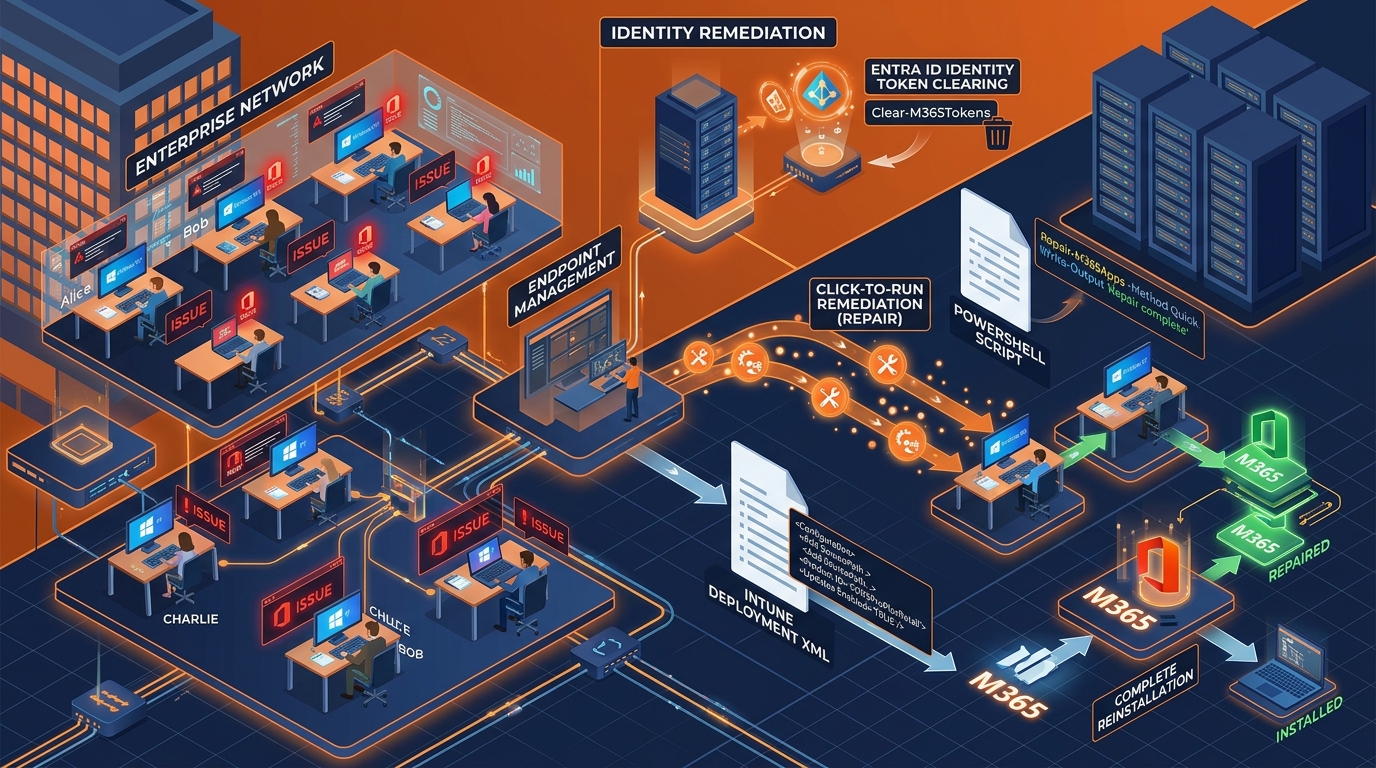
Figure 1: Enterprise Cloud Migration & Microsoft 365 Endpoint Reinstallation Cycle.
1. Executive Summary: The Enterprise Reinstallation Challenge
In an enterprise environment, reinstalling office applications is rarely as simple as clicking an installer executable on a single workstation. When IT administrators and infrastructure teams evaluate how to reinstall office 365 across hundreds or thousands of endpoints, they are facing a complex client-side remediation and identity re-binding project.
Corrupted Click-to-Run (C2R) service registries, lingering identity tokens from past domain migrations, broken Web Account Manager (WAM) caches, and mismatched update channels frequently paralyze workforce productivity.
Ad-hoc attempts to repair or reinstall applications without systematic cleanup often trigger recurring activation loops, broken Outlook profiles (.ost file synchronization failures), and licensing conflicts. Furthermore, during an enterprise tenant migration or an exchange to microsoft 365 migration, failing to clean legacy client state before reinstalling software causes severe authentication friction between local Active Directory accounts and cloud Entra ID instances.
Partnering with an experienced m365 deployment partner turns chaotic endpoint troubleshooting into a streamlined, automated remediation process. This master guide provides CTOs, IT Directors, and Enterprise Systems Engineers with an architectural blueprint for completely scrubbing, re-architecting, and reinstalling Microsoft 365 Apps for Enterprise across complex network environments.
2. Pre-Reinstallation Discovery & Diagnostic Audits
Before executing uninstallation scripts or deploying updated software packages, systems engineers must run deep diagnostic checks across targeted endpoints. Indiscriminately executing uninstallation routines without pre-flight audits risks wiping unbacked-up local data, customized templates, and localized user settings.
Click-to-Run (C2R) Engine & Service Audit
Microsoft 365 Apps rely on the Click-to-Run virtualization service (ClickToRunSvc). When determining how to reinstall office 365 due to application crashes or failed update rings, verify the state of the underlying virtual file system:
- Service State Verification: Check whether
ClickToRunSvcis unresponsive, deadlocked, or returning error codes such as0x40071334or0x80070005. - Registry Hive Scrutiny: Inspect
HKLM\SOFTWARE\Microsoft\Office\ClickToRunfor corrupted configuration keys, incomplete update payloads, or mismatchedPlatformTypevalues (e.g., conflicting x86 and x64 registry entries). - Deployment Channel Mismatches: Identify whether workstations have drifted from the corporate standard (e.g., endpoints running Current Channel instead of Monthly Enterprise Channel).
Identity & WAM Token Cache Diagnostics
Modern authentication in Microsoft 365 relies on the Web Account Manager (WAM) broker plugin (Microsoft.AAD.BrokerPlugin) in Windows. When an organization undergoes an enterprise tenant migration, legacy authentication tokens remain cached on local hardware, preventing newly installed suites from activating against the new tenant.
- Credential Manager Scraping: Scan Windows Credential Manager under
Generic Credentialsfor orphanedMicrosoftOffice16_Datatokens. - WAM Cache Invalidation: Audit
HKCU\Software\Microsoft\Office\16.0\Common\Identityto locate invalid user principal name (UPN) hashes causing identity prompt loops.
Preserving Local Data & Profile Assets
A critical failure during endpoint reinstallation is the unintentional deletion of client-side communication data. While cloud mailboxes store source data on Exchange Online, local Outlook data files (.ost) and disconnected personal storage files (.pst) must be safeguarded.
Technical Safeguard: Always unbind local Outlook profiles or verify that local .pst archives are completely mapped prior to wiping office registry trees. Ingesting or repairing orphan archive files before client reinstallation is essential for continuous operations.
For step-by-step guidance on identifying, staging, and migrating legacy email archives without data loss during endpoint transformations, refer to our comprehensive Import PST to Office 365 Guide.
3. Complete Technical Protocol: How to Reinstall Office 365 Across Endpoints
To cleanly execute a full suite reinstallation at scale, IT administrators must move past manual Control Panel uninstallers. Follow this four-phase technical protocol to completely scrub corrupted installations and deploy fresh, pre-configured software packages.
Phase 1: Automated Scrubbing & Registry Purge
Standard uninstallation leaves thousands of registry keys, cached licenses, and virtualized file fragments behind. To perform a complete purge, systems engineers utilize automated scrubbing scripts based on Microsoft's deployment cleanup tools (OffScrub).
PowerShell Remediation Snippet: Deep Registry & Directory Purge
The following administrative PowerShell script halts active virtualization processes, purges residual Office 16.0 registry hives, and deletes cached local installation directories:
# Stop Click-to-Run and Office-related processes
$Services = @("ClickToRunSvc", "OfficeSvc")
foreach ($Service in $Services) {
    if (Get-Service -Name $Service -ErrorAction SilentlyContinue) {
        Stop-Service -Name $Service -Force -ErrorAction SilentlyContinue
        Set-Service -Name $Service -StartupType Disabled
    }
}

Get-Process -Name "OfficeClickToRun", "integratedoffice", "WINWORD", "OUTLOOK" -ErrorAction SilentlyContinue | Stop-Process -Force

# Purge Registry Trees for Office 16.0 (C2R & MSI Traces)
$RegistryPaths = @(
    "HKLM:\SOFTWARE\Microsoft\Office\16.0",
    "HKLM:\SOFTWARE\Microsoft\Office\ClickToRun",
    "HKLM:\SOFTWARE\Microsoft\Windows\CurrentVersion\Uninstall\O365ProPlusRetail - en-us",
    "HKCU:\Software\Microsoft\Office\16.0"
)

foreach ($Path in $RegistryPaths) {
    if (Test-Path -Path $Path) {
        Remove-Item -Path $Path -Recurse -Force -ErrorAction SilentlyContinue
    }
}

# Delete Local AppData and Installation Directories
$FolderPaths = @(
    "${env:ProgramFiles}\Microsoft Office 16",
    "${env:ProgramFiles(x86)}\Microsoft Office 16",
    "${env:CommonProgramFiles}\Microsoft Shared\Office16",
    "${env:LOCALAPPDATA}\Microsoft\Office\16.0",
    "${env:APPDATA}\Microsoft\Office\16.0"
)

foreach ($Folder in $FolderPaths) {
    if (Test-Path -Path $Folder) {
        Remove-Item -Path $Folder -Recurse -Force -ErrorAction SilentlyContinue
    }
}
Phase 2: System Dependency & Network Infrastructure Repair
Once the legacy software footprint is deleted, verify that core system dependencies meet the operational requirements of a fresh installation:
- Network Transport Verification: Confirm that endpoints communicate over TLS 1.2 or TLS 1.3 to Microsoft's Content Delivery Network (CDN) endpoints (
officecdn.microsoft.com). - Identity Broker Reset: Reset the WAM cache by clearing the local app data for
Microsoft.AAD.BrokerPlugin_cw5n1h2txyewyusing PowerShell to ensure clean authentication prompts upon relaunch. - Local Policy Audit: Verify that Group Policy Objects (GPOs) or Intune Configuration Profiles do not block Click-to-Run installer binaries or local background installation tasks.
Phase 3: Automated Silent Redeployment via ODT & Intune
When planning how to reinstall office 365 silently across hundreds of remote or office-bound devices, use the Office Deployment Tool (ODT) managed via Microsoft Intune or System Center Configuration Manager (SCCM).
Production ODT Configuration File (reinstall_configuration.xml)
This production XML configuration executes a clean, silent background installation of 64-bit Microsoft 365 Apps for Enterprise on the Monthly Enterprise Channel, automatically removing residual MSI packages and disabling unnecessary background telemetry:
<Configuration>
  <Add OfficeClientEdition="64" Channel="MonthlyEnterprise" MigrateArch="TRUE">
    <Product ID="O365ProPlusRetail">
      <Language ID="en-us" />
      <ExcludeApp ID="Groove" />
      <ExcludeApp ID="Lync" />
      <ExcludeApp ID="Bing" />
    </Product>
  </Add>
  <Property Name="UpdatesEnabled" Value="TRUE" />
  <Property Name="SharedComputerLicensing" Value="0" />
  <Property Name="AUTOACTIVATE" Value="1" />
  <Property Name="FORCEAPPSHUTDOWN" Value="TRUE" />
  <Display Level="None" AcceptEULA="TRUE" />
  <Logging Level="Standard" Path="%temp%\O365_Reinstall_Logs" />
  <Remove MSIPROD="ALL" />
</Configuration>
Executing the Reinstallation Command
Run the installation using elevated command-line parameters through your endpoint management framework:
setup.exe /configure reinstall_configuration.xmlPhase 4: Identity Re-Binding & Licensing Activation
After the setup engine finishes writing the fresh installation binaries, the endpoint must bind to the user's active cloud license:
- Interactive vs. Silent Activation: If devices are Entra ID Joined or Hybrid Joined, activation completes silently in the background using the active Windows Primary Refresh Token (PRT).
- Shared Computer Licensing (SCL): For Virtual Desktop Infrastructure (VDI), Azure Virtual Desktop (AVD), or Citrix environments, ensure
SharedComputerLicensingis set to1in the configuration XML so licensing tokens roam with user sessions without consuming individual activation limits.
4. Enterprise Architecture & Infrastructure Integration
Endpoint reinstallation projects rarely occur in a vacuum. They are often triggered by large-scale enterprise infrastructure transformations, such as a cloud shift managed by an specialized cloud migration provider.
Tenant-to-Tenant (T2T) Migration Alignment
During an enterprise tenant migration resulting from a corporate merger, acquisition, or divestiture, every client machine must be re-bound to a target tenant. Simply changing the user's sign-in address in Outlook will fail because local license registry entries remain tied to the source tenant's Subscription Licensing Service (SLS).
In this scenario, knowing how to reinstall office 365 alongside complete identity token clearing is mandatory. Systems engineers must wipe source tenant license certs located in %LocalAppData%\Microsoft\Office\16.0\Licensing before triggering the fresh installation routine.
Integration with Exchange to Microsoft 365 Migration Projects
When transitioning from legacy on-premises infrastructure via an exchange to microsoft 365 migration, older Outlook builds (such as standalone Office 2013 or 2016 MSI installs) cannot leverage modern Autodiscover v2 protocols or OAuth 2.0 modern authentication natively.
Upgrading and reinstalling endpoints with Microsoft 365 Apps for Enterprise ensures full compatibility with Exchange Online Protection (EOP), modern mailbox features, and cloud-native security controls. Integrating robust email migration solutions alongside client-side reinstallation guarantees that local data files automatically reconnect to cloud mailboxes without manual helpdesk intervention.
5. Security Hardening & Post-Reinstallation Baselines
Once Microsoft 365 Apps have been successfully reinstalled across the enterprise fleet, security teams must immediately enforce baseline protection controls to secure endpoints against emerging attack vectors.
Attack Surface Reduction (ASR) Rules
Configure Defender for Endpoint and Intune Endpoint Security policies to apply strict Attack Surface Reduction rules to newly installed Office binaries:
- Block Child Process Creation: Prevent Office applications (Word, Excel, PowerPoint) from creating child processes (e.g., launching
cmd.exeorpowershell.exe). - Macro Execution Security: Disable untrusted VBA macros globally via Group Policy, allowing only digitally signed macros from trusted enterprise publisher certificates.
- Block Win32 API Calls from Macros: Prevent VBA code from calling Win32 APIs that attempt to write directly to system memory or registry hives.
Zero-Trust Access & Identity Controls
- Enforce Modern Auth & Block Basic Auth: Ensure legacy authentication attempts (IMAP4, POP3, Exchange ActiveSync) are blocked globally at the Entra ID Conditional Access layer.
- Device Compliance Binding: Restrict Office 365 application activation exclusively to corporate devices marked as Compliant in Intune or Hybrid Entra ID Joined.
Purview Information Protection & DLP Deployment
Deploy Microsoft Purview Information Protection templates directly to freshly reinstalled applications:
- Sensitivity Labels: Force default sensitivity labeling (e.g., General, Confidential, Restricted) on all newly created documents and emails.
- Endpoint DLP Rules: Prevent users from copy-pasting sensitive financial data, customer details, or proprietary source code from reinstalled Word or Excel files into unmanaged web browsers or cloud storage apps.
6. Internal IT vs. Certified Implementation Partner
Attempting to resolve widespread Click-to-Run corruption, identity loops, or tenant re-bindings using internal helpdesk staff often leads to project delays, user frustration, and excessive ticket backlogs.
| Evaluation Criterion | Internal Helpdesk Execution | Certified Implementation Partner |
|---|---|---|
| Remediation Speed | Slow, manual endpoint troubleshooting (1–3 hours per workstation). | Rapid, automated silent reinstallation deployed via Intune/SCCM scripts across thousands of seats. |
| Data Preservation | High risk of accidental OST/PST loss, deleted custom templates, or broken local archives. | Systematic backup, registry protection, and managed PST staging pipelines ensuring complete data integrity. |
| Identity & Token Management | Basic re-installs leave lingering WAM tokens, causing repeated tenant sign-in loops. | Deep Entra ID identity token clearing, WAM resets, and seamless single sign-on (SSO) configuration. |
| Security Hardening | Default client installations installed without ASR rules, Purview DLP, or macro blocking. | Pre-configured security baseline deployment including Purview labeling, Defender ASR, and Conditional Access. |
| Operational Impact | Severe productivity downtime as end users wait for manual helpdesk intervention. | Zero-downtime execution completed during off-hours with automated silent background scripts. |
To discover how expert cloud architects streamline enterprise software deployments and complex tenant migrations, read our dedicated Microsoft Office 365 Consultant Guide.
7. Certified Partner Evaluation Framework
When evaluating an external m365 deployment partner to manage large-scale client remediations, endpoint reinstallations, or tenant transitions, use this 8-point criteria framework:
- Verified Microsoft Credentials: Ensure the partner holds active Microsoft Solutions Partner designations in Modern Work and Security.
- Identity & Entra ID Expertise: Confirm deep architectural capability in resolving complex WAM token corruption, Primary Refresh Token (PRT) binding issues, and hybrid identity configurations.
- Demonstrated Large-Scale Track Record: Verify a proven history of managing client-side software remediations and tenant migrations for enterprises with over 1,000 endpoints.
- Data Preservation & PST Recovery Procedures: Require formal workflows for backing up, auditing, and re-mapping user signatures, custom templates, local archives, and Outlook profiles prior to uninstallation.
- Custom Automation Capabilities: Ensure the partner utilizes robust, field-tested PowerShell and XML scripting frameworks rather than manual installer GUIs.
- Advanced Security Hardening Integration: Confirm the deployment scope includes setting up Attack Surface Reduction rules, Purview DLP policies, and modern authentication controls.
- Service Level Agreements (SLAs): Demand clear SLAs guaranteeing minimal disruption to daily business operations during endpoint re-deployment phases.
- Transparent Fixed-Fee Pricing: Insist on predictable, transparent per-seat or fixed-project pricing that eliminates unexpected hourly charges or licensing overages.
8. Post-Deployment Telemetry, Governance & Continuous Optimization
Following a successful enterprise reinstallation project, IT leadership must establish continuous telemetry monitoring and lifecycle management to prevent future installation drift or performance degradation.
Endpoint Analytics & Crash Telemetry
Leverage Intune Endpoint Analytics to monitor application health and performance across newly installed software suites:
- App Crash Frequency Tracking: Monitor crash frequency metrics for
WINWORD.EXE,OUTLOOK.EXE, andEXCEL.EXEto identify problematic third-party COM add-ins before they affect end-user productivity. - Startup Impact Analysis: Audit Outlook startup times to detect legacy add-ins or large, unindexed data files that slow application launches.
Channel Drift & Lifecycle Governance
Prevent endpoints from drifting onto unmanaged or untested release channels by enforcing Intune Configuration Profiles:
Governance Standard: Lock all production endpoints to the Monthly Enterprise Channel. This channel provides predictable, once-a-month feature updates on the second Tuesday of each month, giving IT teams time to test line-of-business (LOB) macro compatibility while maintaining continuous security patch compliance.
Empowering IT Staff with Knowledge Management
Ensure internal helpdesk teams are equipped with updated documentation, administrative scripts, and escalation paths for post-reinstallation support. For additional technical resources, administrative guides, and enterprise deployment insights, visit the Work365 Knowledge Base.
9. Conclusion & Executive Call-to-Action
Understanding how to reinstall office 365 at an enterprise level requires far more than basic application troubleshooting. It demands a structured, automated approach that cleans lingering registry keys, purges corrupted identity token caches, repairs underlying system dependencies, and securely redeploys configured software packages via Intune or SCCM.
By replacing manual, ad-hoc fixes with an enterprise-grade remediation pipeline, organizations eliminate user downtime, protect critical local data, and harden their endpoint software against modern security threats.
Whether your organization is resolving widespread installation corruption, executing a complex enterprise tenant migration, or modernizing endpoints following an exchange to microsoft 365 migration, working alongside a certified deployment team guarantees project success.
Partner with Work365 for Seamless Enterprise Deployments
Ready to eliminate endpoint installation headaches and optimize your enterprise Microsoft 365 architecture? Work365 delivers expert cloud architecture, automated client deployment scripts, and comprehensive migration solutions tailored to your organization's exact needs.
- Explore our transparent, enterprise-ready plans: Visit Office 365 Package & Pricing.
- Schedule a consultation with our Lead Cloud Architects to streamline your deployment strategy today.
Get Genuine Office 365 Pack for $10
Unlock full desktop applications, 1TB OneDrive cloud storage, and 1-year full warranty.
Order $10 Pack via WhatsApp