Office 365 E1 Migration Strategy Guide for Enterprises
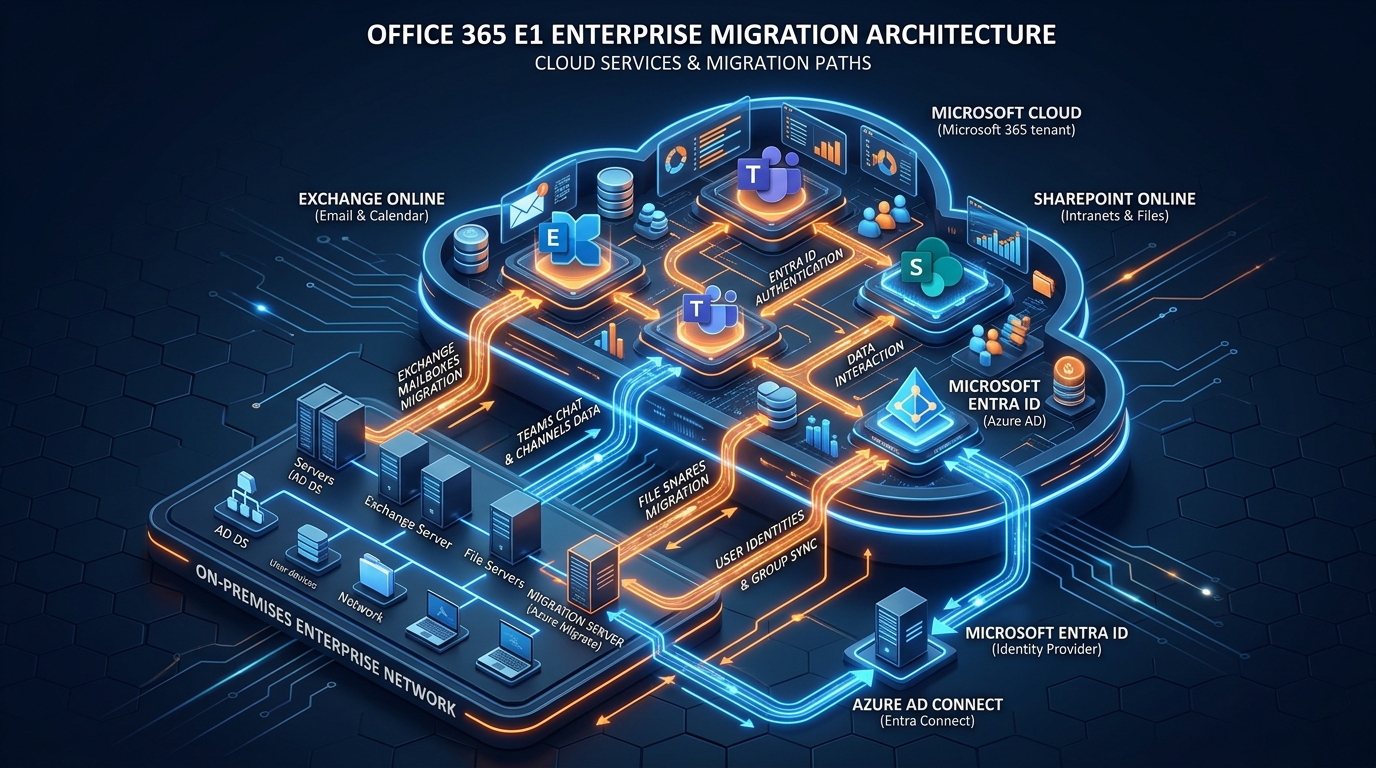
Figure 1: Enterprise Office 365 E1 Migration & Cloud Architecture Blueprint.
Executive Summary & Strategic Cloud Imperative
In the modern enterprise landscape, legacy IT infrastructure represents more than technical debt; it is an active threat to business agility, regulatory compliance, and organizational productivity. Chief Technology Officers (CTOs) and IT Directors face relentless pressure to streamline infrastructure costs while simultaneously hardening corporate security postures and facilitating frictionless collaboration for hybrid workforces.
Transitioning to an office 365 e1 plan offers one of the most cost-effective entry points into the Microsoft cloud ecosystem. Providing enterprise-grade email, cloud storage, real-time collaboration, and web-based productivity apps, the E1 tier allows organizations to modernize their digital workspace without paying premium fees for desktop software licenses that many information workers simply do not require.
However, moving thousands of enterprise mailboxes, petabytes of unstructured data, and complex identity infrastructures to Microsoft 365 is a high-stakes engineering endeavor. A poorly planned exchange to microsoft 365 migration can lead to catastrophic business disruption: missing transactional emails, severe network latency, identity synchronization conflicts, compliance gaps, and unbudgeted downtime that damages client trust.
Executing a flawless transition requires deep architectural expertise, structured migration methodologies, and meticulous security hardening. Partnering with a specialized cloud migration provider ensures that your enterprise tenant migration avoids common operational pitfalls and delivers an immediate return on investment.
1. Deconstructing Office 365 E1: Core Architecture & Licensing Strategy
To maximize the commercial value of an office 365 e1 investment, IT leadership must thoroughly understand its structural components, workload capabilities, and deployment parameters.
Core Services Included in Office 365 E1
The office 365 e1 tier integrates core cloud services engineered to support enterprise communication, data storage, and team collaboration:
- Exchange Online (Plan 1): Provides each user with a 50 GB mailbox, supporting custom domain branding, shared mailboxes, resource calendars, and advanced spam/malware protection via Exchange Online Protection (EOP).
- Microsoft Teams: Serves as the central hub for enterprise collaboration, offering chat, HD audio/video conferencing (up to 300 interactive participants), channel workspace management, and deep integration with SharePoint documents.
- SharePoint Online: Enables organizations to build secure, corporate-wide intranets, document repositories, and team sites with fine-grained permission models and version control.
- OneDrive for Business: Delivers 1 TB of dedicated personal cloud storage per user, featuring cross-device synchronization, secure external sharing controls, and file restoration capabilities.
- Office for the Web & Mobile: Includes lightweight, browser-based versions of Microsoft Word, Excel, PowerPoint, Outlook, and OneNote, allowing users to view, edit, and co-author files in real-time across devices.
Web Apps vs. Desktop Apps: Optimizing TCO
The fundamental distinction between the office 365 e1 plan and higher tiers (such as E3 or E5) lies in the application delivery model:
Key Difference: Office 365 E1 does not include downloadable desktop client applications (such as Microsoft 365 Apps for enterprise). Users access Word, Excel, and PowerPoint exclusively via web browsers or mobile applications.
For deskless workers, shift personnel, customer support teams, and field technicians, web-based applications provide all necessary functionality at a fraction of the cost. However, power users who depend on complex macro-enabled Excel workbooks, offline access, or advanced Word formatting require dedicated desktop installations.
Hybrid Licensing Strategy: Combining E1 with E3/E5
Enterprise organizations rarely adopt a single license tier across all employees. A mature m365 deployment partner will architect a hybrid licensing blueprint that aligns license costs directly with employee job roles:
- Frontline & General Administrative Staff (60–70% of workforce): Assigned office 365 e1 licenses to leverage cloud email, Teams collaboration, and web-based editing.
- Executive & Analytical Teams (20–30% of workforce): Assigned Microsoft 365 E3 licenses to gain desktop applications, advanced compliance tools, and higher mailbox caps.
- Security & IT Operations Staff (5–10% of workforce): Assigned Microsoft 365 E5 or standalone add-ons (such as Entra ID P2 and Microsoft Defender for Office 365) to manage organization-wide threat protection and governance.
By conducting a comprehensive user persona analysis prior to migration, enterprise organizations routinely reduce ongoing SaaS licensing expenditure by 25% to 40%.
2. Enterprise Tenant Migration Strategies & Architectural Topologies
Selecting the appropriate migration topology is the single most critical decision during an enterprise cloud migration. The chosen architectural path dictates network requirements, execution timelines, administrative overhead, and end-user impact.
Hybrid Exchange Deployment (Minimal vs. Full)
For organizations transitioning from on-premises Microsoft Exchange Server (2013, 2016, or 2019), a Hybrid deployment establishes a unified bridge between local server infrastructure and Exchange Online.
Full Hybrid Deployment
Full Hybrid deployment creates seamless coexistence between on-premises and cloud environments. It is recommended for enterprise environments with over 500 mailboxes or long migration timelines.
- Features: Free/busy calendar sharing across environments, centralized mail routing via on-premises transport rules, automatic Outlook client profile reconfiguration, and seamless cross-premises mailbox moves.
- Prerequisites: Exchange Server updating to the latest Cumulative Update (CU), deployment of the Exchange Hybrid Configuration Wizard (HCW), and robust identity synchronization.
Minimal Hybrid Deployment
Designed for rapid, single-wave transitions where long-term coexistence is unnecessary.
- Features: Performs batch migrations of mailbox data while maintaining identity management; does not support advanced cross-premises calendar free/busy lookups or long-term mail routing coexistence.
- Best For: Small-to-medium enterprises requiring quick cloud cutovers with minimal infrastructure maintenance.
Cross-Tenant M365 Migration
Mergers, acquisitions, divestitures, and corporate restructurings frequently require moving user mailboxes, SharePoint sites, and Teams data from one Microsoft 365 tenant to another (enterprise tenant migration).
- Identity Mapping: User accounts must be pre-provisioned in the target tenant, mapping Immutable IDs (UserPrincipalName) to match legacy identities.
- Domain Cutover Strategy: A primary domain (e.g.,
@company.com) can exist in only one tenant at a time. The cutover process requires stripping the domain from target source objects, removing it from the source tenant, adding/verifying it in the target tenant, and updating all target user UPNs—often within a tight maintenance window. - Third-Party Tooling: Cross-tenant migrations rely on specialized orchestration software (e.g., Quest, BitTitan, or Microsoft Cross-Tenant Mailbox Migration) to handle object synchronization, delta syncs, and permission mappings.
Identity Management & Directory Synchronization
A secure identity framework is essential for enterprise cloud deployments. Microsoft Entra ID Connect (formerly Azure AD Connect) or Entra Cloud Sync synchronizes local Active Directory Domain Services (AD DS) objects to Entra ID.
- Password Hash Sync (PHS): The simplest and most resilient authentication model. Hashes of user credentials are securely synchronized to Entra ID, allowing users to sign in with local passwords even if local domain controllers are offline.
- Pass-Through Authentication (PTA): Authentication requests are validated directly against local Active Directory agents in real time, satisfying strict compliance policies that prohibit password hash storage in the cloud.
- Federated Identity (AD FS): Offloads authentication entirely to an external Identity Provider (IdP) like Active Directory Federation Services or Okta. While highly configurable, it introduces operational complexity and single-point-of-failure risks if redundant proxies are not deployed.
3. Step-by-Step Technical Execution: Legacy Exchange to Office 365
Executing an enterprise exchange to microsoft 365 migration requires a structured, phase-based technical workflow.
Phase 1: Pre-Migration Auditing & Environment Readiness
Before migrating data, a cloud migration provider performs comprehensive environment discovery and remediates underlying technical blockers:
- Active Directory Sanitization: Clean up stale user accounts, duplicate
proxyAddresses, invalid UPN suffixes, and non-standard characters in object attributes. - Network Bandwidth & Throttling Assessment: Evaluate WAN bandwidth capabilities. Microsoft Exchange Web Services (EWS) and Graph API limits impose ingestion caps per mailbox. Calculate data volume vs. pipeline speed to establish realistic migration window velocity.
- Exchange Health Validation: Run the Microsoft Remote Connectivity Analyzer and review local Exchange Event Logs to ensure database health and SSL certificate validity.
Phase 2: Hybrid Configuration & Identity Synchronization
- Deploy Entra ID Connect: Install Entra ID Connect on a dedicated domain-joined server. Configure OU filtering to sync only active enterprise users, groups, and contacts.
- Execute Hybrid Configuration Wizard (HCW): Run the HCW on an edge Exchange server. Select Full Hybrid with Classic Topology (or Exchange Modern Hybrid Agent if incoming firewall openings are restricted).
- Configure Mailflow & TLS: Establish Secure Mail Routing connectors. Ensure external SSL certificates from a trusted public CA cover subject alternative names (SANs) for Autodiscover and hybrid mail endpoints (e.g.,
mail.company.com).
Phase 3: Mailbox Data Ingestion & Delta Sync
- Create Migration Batches: Group mailboxes logically by department, geography, or business unit. Avoid moving entire critical leadership teams in a single batch.
- Initiate Initial Data Sync: Execute the primary synchronization pass while users continue working on their on-premises mailboxes. Large mailboxes (up to 50 GB) sync historical data in the background over several days.
- Perform Delta Sync & Cutover: Schedule the final incremental sync outside business hours. Replicate changes made since the initial pass, complete the migration batch, and flip the user mailbox type on-premises to Remote Mailbox.
Phase 4: PST File Ingestion & Data Archival
Legacy offline Outlook Data Files (.pst) stored on local workstations or file shares introduce compliance, security, and data loss risks. Ingesting these files directly into cloud archives is a core requirement during enterprise modernizations.
- PST Discovery: Run automated agent scans across end-user workstations to locate all unencrypted PST files.
- Network Upload vs. Drive Shipping: Upload PST datasets to Azure Storage blobs via AzCopy, or utilize Microsoft Drive Shipping for multi-terabyte datasets.
- Ingestion Mapping: Apply automated mapping files to import PST data directly into user Primary Mailboxes or In-Place Archives.
For detailed step-by-step technical procedures on PST ingestion parameters, powershell scripting, and mapping rules, consult our full guide on Import PST to Office 365 Guide.
4. Enterprise Security Hardening & Zero Trust Governance
Deploying an office 365 e1 tenant without security hardening leaves an enterprise vulnerable to credential harvesting, business email compromise (BEC), and unauthorized data exfiltration. Applying Zero Trust security controls ensures cloud identities and assets remain protected.
1. Disabling Legacy Authentication Protocols
Legacy protocols (such as POP3, IMAP4, SMTP AUTH, and MAPI over HTTP without Modern Auth) cannot process Multi-Factor Authentication requests. Cybercriminals routinely exploit these protocols to bypass MFA controls via brute-force and password-spraying attacks.
Action: Enforce Microsoft Entra ID Authentication Policies to globally disable legacy authentication across all Exchange Online endpoints. Transition all mail clients to Modern Authentication (OAuth 2.0).
2. Implementing Conditional Access Frameworks
Conditional Access enforces real-time access controls based on contextual telemetry:
- Require MFA for All Users: Mandate multi-factor authentication via the Microsoft Authenticator app or FIDO2 security keys.
- Location-Based Controls: Restrict access to corporate tenant resources from unapproved geographic regions or non-compliant IP address ranges.
- Device Health Validation: Enforce policies requiring devices to be Azure AD Joined or Hybrid Azure AD Joined to access corporate Teams and SharePoint repositories.
3. Email Authentication & Messaging Protection (SPF, DKIM, DMARC)
To prevent email spoofing and ensure message deliverability, configure domain authentication records within public DNS:
- Sender Policy Framework (SPF): Define authorized mail servers sending on behalf of your domain:
v=spf1 include:spf.protection.outlook.com -all - DomainKeys Identified Mail (DKIM): Enable DKIM signing within the Exchange Online Admin Center and publish two CNAME records pointing to Microsoft's selector keys.
- Domain-based Message Authentication, Reporting, and Conformance (DMARC): Publish a public DMARC policy enforcing quarantine or rejection for non-aligned messages:
v=DMARC1; p=reject; rua=mailto:dmarc-reports@company.com; pct=100
5. In-House Execution vs. Certified Cloud Migration Provider
Enterprise leadership often evaluates whether to migrate workloads internally using existing IT staff or engage a specialized m365 deployment partner. The operational and financial comparison below highlights the key differences:
| Evaluation Dimension | In-House IT Execution | Certified Implementation Partner (Work365) |
|---|---|---|
| Execution Speed & Velocity | Slow; internal teams must manage daily support tickets alongside migration tasks. | Rapid & Streamlined; Dedicated engineering teams leverage standardized automation toolsets. |
| Downtime & Operational Risk | High; Lack of experience with cutover mechanics can cause unexpected mail flow outages. | Zero-Downtime Guarantee; Proven coexistence blueprints prevent business disruption. |
| Data Integrity & PST Loss | Risk of Data Loss; Manual file moves often corrupt PST archives and permissions. | Complete Ingestion; Automated tools preserve metadata, folder structures, and access controls. |
| Security Posture | Default configurations; legacy protocols and insecure sharing settings often remain enabled. | Zero Trust Hardening; Strict Conditional Access, MFA, and SPF/DKIM/DMARC policies enforced at launch. |
| Licensing Optimization | Over-provisioning high-cost licenses (E3/E5) to avoid configuring complex roles. | Targeted Licensing; Optimized E1/E3 hybrid licensing saves up to 40% in recurring SaaS spend. |
| Post-Migration Support | Internal helpdesk becomes overwhelmed with user onboarding tickets. | Managed Transition; Tier-3 escalation support, documentation, and operational handoff. |
6. Evaluation Checklist: Selecting an M365 Deployment Partner
When selecting a cloud migration provider to architect and execute your enterprise tenant migration, validate vendor capabilities against this evaluation checklist:
- Proven Microsoft Certifications: Verify that the partner holds active Microsoft Solutions Partner designations in Infrastructure, Modern Work, and Security.
- Demonstrated Enterprise Migration Track Record: Confirm the vendor has completed large-scale cutovers involving 1,000+ mailboxes, cross-tenant migrations, or legacy Exchange environments.
- Comprehensive Tooling & Automation Stack: Ensure the vendor uses enterprise-grade migration platforms (e.g., BitTitan MigrationWiz, Quest, or specialized PowerShell automation libraries) rather than standard manual copy methods.
- Strict Service Level Agreements (SLAs): Require binding SLAs covering zero-downtime execution, data integrity, and strict completion schedules.
- Security & Compliance Framework Mastery: The partner must demonstrate experience establishing Zero Trust access, configuring Entra ID Conditional Access policies, and aligning environments with HIPAA, SOC2, or GDPR standards.
- Full Lifecycle Project Management: Verify the scope includes pre-migration health checks, identity synchronization setup, PST ingestion, network bandwidth optimization, and post-migration validation.
- Licensing Cost Optimization Expertise: Ensure the provider reviews your workforce personas to deliver a tailored, cost-effective office 365 e1 hybrid licensing structure.
- Comprehensive Handoff & Knowledge Transfer: The partner must deliver complete operational documentation, network topology diagrams, and training for in-house administrators.
For additional strategies on evaluating external technical services, review our comprehensive Microsoft Office 365 Consultant Guide.
7. Strategic Conclusion & Next Steps
Transitioning to an office 365 e1 environment empowers organizations to modernize communication channels, reduce reliance on legacy infrastructure, and optimize licensing costs across the enterprise. However, achieving these benefits requires precise technical execution, robust directory synchronization, and proactive security hardening.
Attempting to execute an exchange to microsoft 365 migration internally can expose your organization to unnecessary operational downtime, data corruption, and security vulnerabilities. Working with a dedicated m365 deployment partner ensures a seamless transition that protects business continuity and maximizes your ROI.
Accelerate Your Cloud Transformation Today
Work365 delivers end-to-end cloud migration services, enterprise tenant consolidations, and security architecture optimization tailored to your business needs.
- Explore customized cloud implementation packages: Office 365 Package & Pricing
- Access technical guides, migration scripts, and architecture whitepapers: Work365 Knowledge Base
- Consult with an enterprise cloud architect today to schedule your migration assessment.
Get Genuine Office 365 Pack for $10
Unlock full desktop applications, 1TB OneDrive cloud storage, and 1-year full warranty.
Order $10 Pack via WhatsApp